Adding a new counter
This guide explains how to create a new counter from the Merchant app so that products can be grouped for counter KOT and also counter-wise menu in consumer app and scan QR.
Prerequisites
- You are logged in to the merchant app with a role that has permission to edit and manage Counters.
- Counter option is enabled for the store.
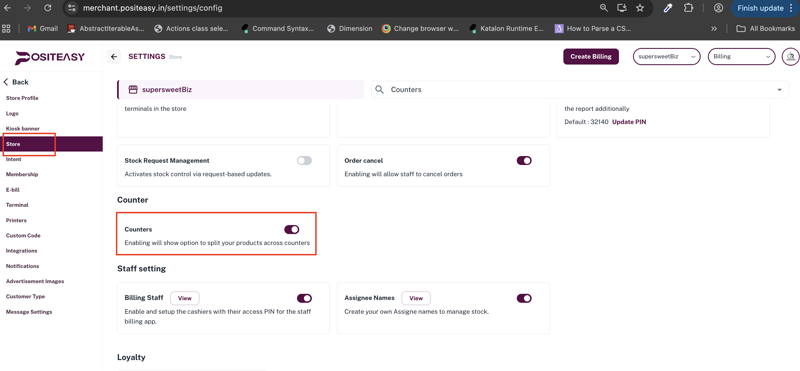
Step 1: Goto counters section
- From the main navigation bar, click Inventory.
- In the Inventory page, click the Base Menu tab if it is not already selected.
- Select the counters section and click New button to open the add counters form.
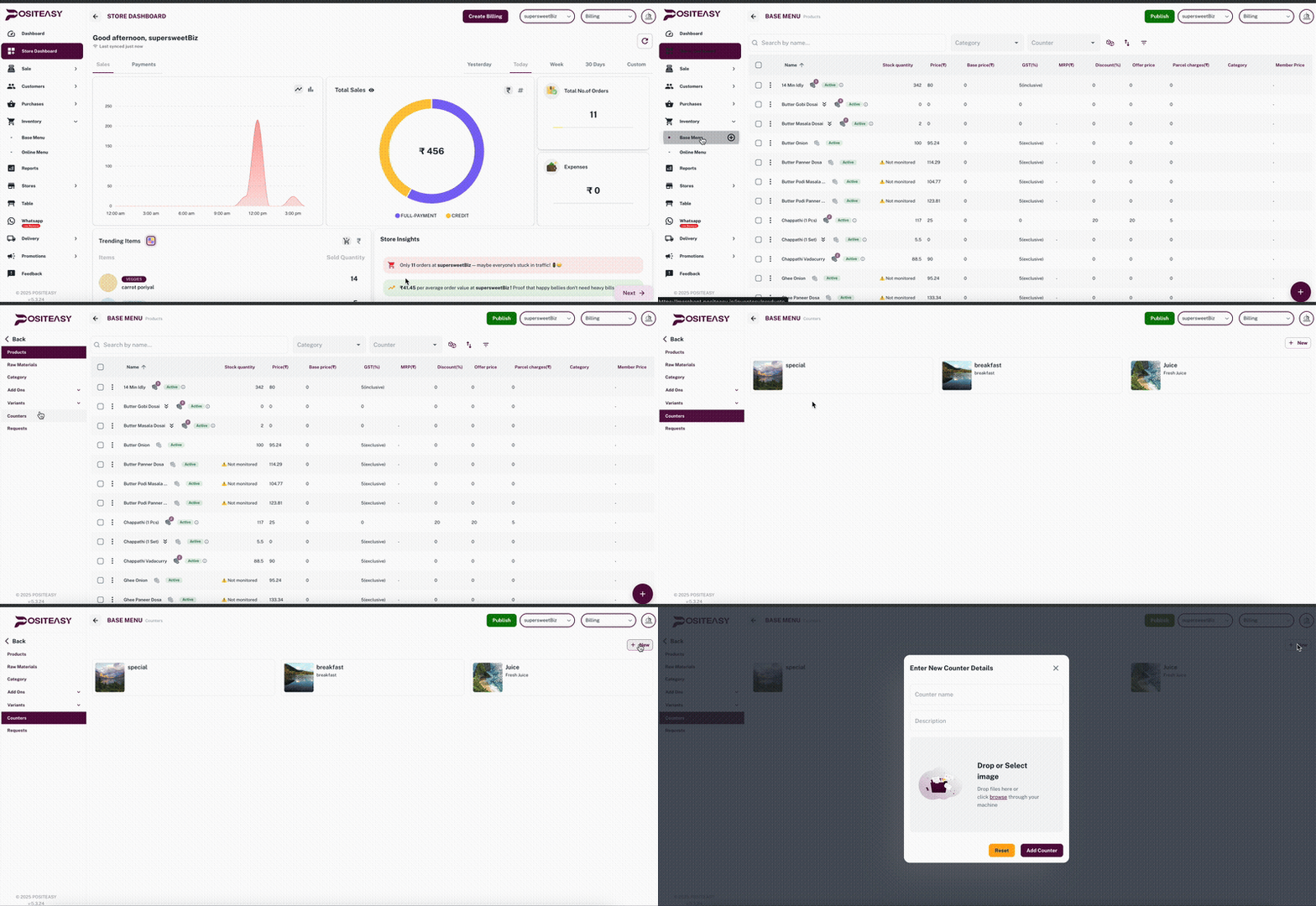
Step 2: Add new counter
In the Enter New Counter Details form, fill in the following:
-
Counter name
- Enter the name of the counter as it should appear in reports and KOT print.
- Examples:
Juice Counter,Dosa Counter,Live Grill.
-
Description (optional)
- Add a short description.
- Example:
Handles all juice and mocktail orders near entrance.
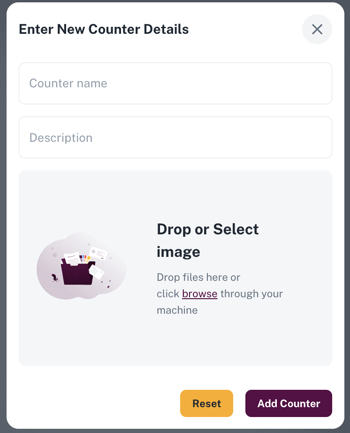
Step 3: Add an image (optional)
In the Drop or Select image section, do one of the following:
- Drag and drop an image onto the upload area, or
- Click browse and select an image from your machine.
Step 4: Save or reset
- If you want to clear all fields and start again, click Reset.
- When all details are correct, click Add Counter to save.